

WP-CLI: Master WordPress Command Line Interface & Benefits
Section 1: The WP-CLI Paradigm: A Foundational Analysis
This report provides a comprehensive technical analysis of the WordPress Command Line Interface (WP-CLI), a foundational tool for modern WordPress development and administration. It will explore what WP-CLI is, its significant advantages over traditional graphical interfaces, and a detailed guide on its installation, configuration, and practical application, from basic commands to advanced automation and multisite management.
1.1 Defining the WordPress Command Line Interface (WP-CLI)
WP-CLI is the official command-line interface for WordPress. It is a command-line tool that enables developers, administrators, and power users to manage and interact with WordPress installations through a text-based terminal or shell.
Its primary function is to provide a comprehensive alternative to the web-based WordPress admin dashboard (/wp-admin/). This allows a user to perform virtually any administrative task—such as installing and updating plugins, creating new users, managing content, or configuring multisite networks—directly from the server’s command line, without ever using a web browser.
The project, long maintained by Daniel Bachhuber (since 2003), was officially adopted by WordPress.org in January 2017. It is now co-maintained by Alain Schlesser and its ongoing development is sponsored by key players in the WordPress ecosystem, including Automattic, Bluehost, WP Engine, and Pantheon.
1.2 The Core Value Proposition: Speed, Efficiency, and Resource Management
The most immediate benefit of WP-CLI is a profound gain in speed and efficiency. Actions that require numerous clicks, page loads, and navigation through the admin GUI—such as activating ten different plugins or deleting 50 spam comments—can be accomplished with a single, concise text command.
However, this user-facing speed is a surface-level benefit. The more fundamental advantage of WP-CLI is its superior management of server resources. When tasks are run through the web-based admin dashboard, they are subject to the resource constraints imposed on web requests, such as PHP’s max_execution_time and memory_limit directives. This is why resource-intensive operations, such as importing a large XML file, regenerating thumbnails for thousands of images, or performing a complex database search-and-replace, frequently fail with a “timeout” error in the browser.
WP-CLI commands, by contrast, run as a separate process on the server, generally “out of process” from the web server itself. This allows them to bypass these restrictive web-request timeouts and execute long-running, intensive tasks reliably. This capability elevates WP-CLI from a simple “convenience” tool to an “enterprise-grade necessity,” as it is often the only reliable method for performing large-scale operations on content-heavy or high-traffic WordPress sites.
1.3 Beyond the Dashboard: Capabilities vs. the Graphical User Interface (GUI)
The goal of the WP-CLI project is to offer a complete alternative to the WordPress admin, meaning that for any action available in the GUI, an equivalent WP-CLI command should exist.
In practice, WP-CLI achieves this parity and then surpasses it, offering a more powerful interface with numerous commands that have no equivalent in the WordPress admin dashboard. These exclusive capabilities are essential for advanced administration, debugging, and security.
Key examples of commands that are only available in WP-CLI include:
wp transient delete --all: Deletes all transient entries from the database. This is a powerful debugging tool for “un-sticking” a site that displays old or incorrect data.wp media regenerate: Re-crops all registered image sizes for existing attachments. This is a critical task after a theme change or when new image sizes are defined, yet it is impossible to perform in bulk from the admin GUI.wp core verify-checksums: Compares the md5 hash of core WordPress files against the official checksums from WordPress.org. This is a vital security-auditing command for detecting modified or malicious core files.wp db query: Allows for the execution of direct, raw SQL operations on the database, bypassing the need for a separate tool like phpMyAdmin.
Section 2: Installation and Environment Configuration
Using WP-CLI begins with accessing the server and installing the tool. This process has specific environmental prerequisites that define its target audience.
2.1 System Prerequisites and Server Requirements
The most significant prerequisite for using WP-CLI is SSH (Secure Shell) access to the server hosting the WordPress installation. The user must be able to log into their server’s command line to execute commands.
This SSH requirement effectively serves as a filter, positioning WP-CLI as a tool for developers, administrators, and users on professional-grade hosting. Budget shared-hosting plans that only provide cPanel or FTP access typically do not support WP-CLI. In contrast, most modern Managed WordPress Hosting providers (such as Kinsta, WP Engine, and Cloudways) and all VPS/dedicated servers not only support WP-CLI but often come with it pre-installed as a key feature.
The software and environment requirements are as follows:
- Environment: A UNIX-like environment (e.g., Linux, macOS, FreeBSD, Cygwin) is standard. Support for native Windows environments is limited.
- PHP Version: PHP 5.6 or later.
- WordPress Version: WordPress 3.7 or later.
2.2 Standard Installation Procedure (UNIX, Linux, macOS)
For users on a UNIX-like system where WP-CLI is not pre-installed, the recommended method is downloading the Phar (.phar) file.
Step 1. Download the Phar File Use curl or wget to download the executable wp-cli.phar file.
curl -O https://raw.githubusercontent.com/wp-cli/builds/gh-pages/phar/wp-cli.pharStep 2. Verify the Build Check that the Phar file is functional by executing it with PHP and requesting its information.
php wp-cli.phar --infoStep 3. Make the File Executable Use the chmod command to grant execute permissions to the file.
chmod +x wp-cli.pharStep 4. Move to System PATH Move the file to a directory that is part of the system’s PATH. This makes the wp command globally accessible from any directory. This step typically requires administrator (root) privileges, invoked via sudo.
sudo mv wp-cli.phar /usr/local/bin/wp2.3 Alternative Environments: Windows and Docker
While official support is limited, installing on a Windows machine is possible. It involves downloading the wp-cli.phar file and creating a companion Windows batch file (e.g., wp.bat) in the same directory. The content of this .bat file acts as a wrapper:
@ECHO OFFphp "c:wp-cliwp-cli.phar" %*This directory (e.g., c:wp-cli) must then be added to the Windows system PATH environment variable.
Alternative installation methods for advanced users also include using Homebrew (for macOS), Composer (for project-level PHP dependencies), or Docker (for containerized environments).
2.4 Post-Installation: Verification, Updates, and Tab Completions
Once installed, the installation can be verified by running:
wp --info
```
If successful, this command will return a detailed report of the operating system, PHP version, PHP configuration, MySQL version, and the installed WP-CLI version.
WP-CLI includes a built-in command for self-updating:
wp cli update: This command checks for and installs the latest stable release. If WP-CLI was installed by the root user, this command may also require sudo.wp cli update --nightly: This command updates to the latest “bleeding-edge” development build.
To improve usability, WP-CLI provides tab-completion scripts for Bash, Z-Shell (including Oh My Zsh), and Fish shells. Enabling this (e.g., by adding source /FULL/PATH/TO/wp-completion.bash to a ~/.bash_profile) allows the user to press the Tab key to auto-complete commands, subcommands, and parameters.
2.5 Global Configuration: Mastering Global Parameters and the wp-cli.yml File
WP-CLI commands can be modified by Global Parameters, which work across all commands. These parameters control how WP-CLI executes a command.
To avoid typing these parameters repeatedly, they can be defined in a configuration file named wp-cli.yml. WP-CLI automatically searches for this file in the current directory, in parent directories, or in the user’s home directory (as ~/.wp-cli/config.yml).
This configuration file is also the key to one of WP-CLI’s most powerful features: aliases. An alias is a shortcut to a remote WordPress installation. By defining aliases in the wp-cli.yml file, a developer can turn their local machine into a “mission control” center for managing multiple sites.
For example, a wp-cli.yml file might contain:
path: /var/www/wordpress@staging: ssh: [email protected]/srv/www/staging.wp-cli.org user: wpcli path: /srv/www/staging.wp-cli.org@production: ssh: [email protected]:2222 user: wpcli path: /srv/www/wp-cli.orgWith this configuration, a developer can run a command like wp @production plugin update akismet from their local machine. WP-CLI will automatically initiate an SSH connection to the production server, navigate to the correct directory, and execute the plugin update akismet command as the specified remote user.
This capability is the core enabler for modern, automated DevOps and deployment workflows in the WordPress ecosystem.
| Description | Command-Line Flag | wp-cli.yml Key |
|---|---|---|
| Path to WordPress files | --path=<path> |
path: <path> |
| Set WP User for command | --user=<id|login|email> |
user: <user> |
| Set WP URL (for multisite) | --url=<url> |
url: <url> |
| Skip loading plugins | --skip-plugins |
skip-plugins: <list> |
| Suppress informational messages | --quiet |
quiet: true |
| Remote SSH target (alias) | --ssh=<ssh_target> |
ssh: <ssh_target> |
Section 3: The Command Structure: A Practical Grammar
To use WP-CLI effectively, it is essential to understand its consistent and predictable command-line “grammar.”
3.1 Anatomy of a WP-CLI Command (wp <command> <subcommand>)
The syntax for WP-CLI commands follows a hierarchical parent-child structure. A command is typically composed of the main executable, a parent command, a subcommand, and its parameters.
Consider this example command: wp plugin install akismet --activate
wp: The main executable file.plugin: The parent command (the “object” or “noun” being acted upon, in this case, “plugins”).install: The subcommand (the “action” or “verb” being taken, in this case, “to install”).akismet: A positional argument (the primary target of the command).--activate: An associative argument, or “flag” (an option that modifies the subcommand’s behavior).
3.2 An Object-Oriented Mental Model
The command structure is intuitive because it follows an object-oriented design, which makes it highly discoverable. The main parent commands are almost all “nouns” that represent core objects within the WordPress system:
wp corewp pluginwp themewp userwp postwp commentwp db
The subcommands are “verbs” or “methods” that act upon these objects, and they are largely consistent across different parent commands: install, activate, update, delete, list, create, get, set.
This creates a predictable grammar of wp <object> <action>. A user does not need to memorize hundreds of commands. Instead, they can learn the primary objects and logically guess the required verb. For example, a user wanting to see all installed themes can logically deduce the command wp theme list. This mental model is the key to mastering the tool.
3.3 The Internal Help System: Using wp help for Self-Discovery
When a user is unsure of a command, the built-in help system is the definitive resource.
wp help: Lists all available parent commands.wp help plugin: Provides a detailed help screen for the plugin parent command, listing all its available subcommands (e.g., install, activate, delete, list, etc.).wp help plugin install: Provides the full synopsis, a list of all parameters (positional and associative), and practical examples for that specific subcommand.
Section 4: Domain Mastery: Core and Asset Management
This section provides a practical “how-to” guide for the most common WP-CLI use cases: managing the WordPress core application, plugins, and themes.
4.1 WordPress Core Operations (wp core)
WP-CLI allows for the complete management of the WordPress application itself, from initial installation to ongoing maintenance.
Scaffolding a New Site One of the most powerful workflows is the ability to provision a brand-new, fully functional WordPress site in seconds, without ever touching the graphical installer. This is a foundational workflow for developers, automated testing, and server provisioning scripts.
The 4-step scaffolding process is:
wp core download: Downloads the latest WordPress core files from WordPress.org.wp config create --dbname=... --dbuser=... --dbpass=...: Generates awp-config.phpfile with the specified database credentials.wp db create: Creates the new database using the credentials fromwp-config.php.wp core install --url=... --title=... --admin_user=... --admin_password=... --admin_email=...: Runs the WordPress installer non-interactively to set up the site, create the admin user, and populate the database tables.
Core Maintenance For existing sites, wp core is used for routine maintenance and security checks:
wp core update: Updates the WordPress installation to the latest version.wp core update-db: Runs any necessary database schema updates after a core update.wp core verify-checksums: Verifies the integrity of all core files, reporting any modified, missing, or added files.wp core version: Displays the currently installed WordPress version.
4.2 Plugin Management (wp plugin)
This is one of the most frequently used components of WP-CLI.
Discovery, Installation, and Activation
wp plugin install <slug>: Installs a plugin from the WordPress.org directory (e.g., wp plugin install akismet).wp plugin install <file.zip>: Installs a plugin from a local ZIP file.wp plugin install <url.zip>: Installs a plugin directly from a remote URL.wp plugin activate <slug>: Activates an already-installed plugin.wp plugin install <slug> --activate: A common and convenient shortcut to install and activate a plugin in a single step.
Bulk Operations and Maintenance
wp plugin list: Displays a table of all installed plugins, their activation status, current version, and any available updates.wp plugin update <slug>: Updates a single specified plugin.wp plugin update --all: Updates all installed plugins that have a new version available.wp plugin deactivate <slug>: Deactivates a single plugin.wp plugin deactivate --all: Deactivates all currently active plugins. This is a powerful troubleshooting step for diagnosing site-breaking conflicts.wp plugin delete <slug>: Deletes a plugin’s files from the server.
| Task | Command Example |
|---|---|
| Install from WP.org | wp plugin install woocommerce |
| Install from local ZIP | wp plugin install ~/downloads/my-plugin.zip |
| Activate Plugin | wp plugin activate woocommerce |
| Deactivate Plugin | wp plugin deactivate woocommerce |
| Install & Activate | wp plugin install woocommerce --activate |
| Update One Plugin | wp plugin update woocommerce |
| Update All Plugins | wp plugin update --all |
| List All Plugins | wp plugin list |
| Delete Plugin | wp plugin delete woocommerce |
4.3 Theme Management (wp theme)
The wp theme command set functions as a direct parallel to wp plugin, using the same verbs and logic.
wp theme install <slug>: Installs a theme from the WordPress.org directory (e.g., wp theme install twentytwentyfour).wp theme activate <slug>: Activates an installed theme.wp theme update --all: Updates all installed themes that have a new version available.wp theme list: Lists all installed themes and their status.wp theme delete <slug>: Deletes a theme’s files.wp scaffold child-theme <slug> --parent_theme=<slug>: A powerful developer utility that generates a correct child theme boilerplate (includingstyle.cssandfunctions.php) for a given parent theme.
| Task | Command Example |
|---|---|
| Install from WP.org | wp theme install twentytwentyfour |
| Activate Theme | wp theme activate twentytwentyfour |
| Update All Themes | wp theme update --all |
| List All Themes | wp theme list |
| Delete Theme | wp theme delete twentytwenty |
| Create Child Theme | wp scaffold child-theme my-child --parent_theme=twentytwentyfour |
Section 5: Domain Mastery: Database and Data Operations
This section covers the most powerful, and highest-risk, commands in WP-CLI. These commands interact directly with the WordPress database and are foundational for migration, backup, and debugging workflows.
5.1 The Migration Linchpin: wp search-replace
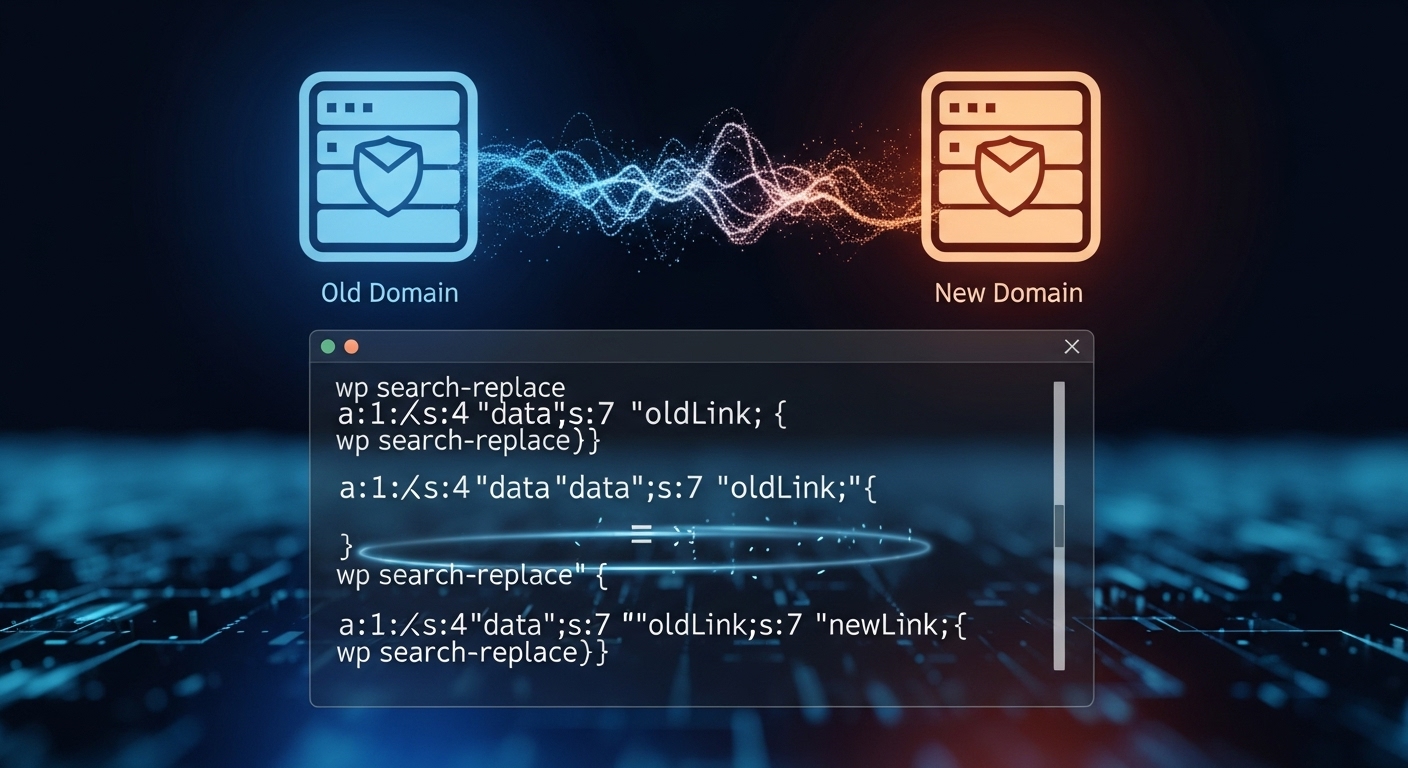
The wp search-replace command is one of the most critical and celebrated tools in the WP-CLI suite. Its primary function is to find a string in the database and replace it with another. This is most commonly used when migrating a site from one domain to another (e.g., from http://staging.com to https://production.com).
This command is essential because it correctly handles PHP serialized data. WordPress stores complex data, such as widgets, menus, and many plugin/theme settings, in the database as serialized arrays or objects. A serialized string includes information about its own data types and, crucially, string lengths.
A naive SQL REPLACE() query would find and replace the URL but would not update the corresponding string-length integers. This corrupts the serialized data, which typically results in broken site functionality, vanishing widgets, and lost settings. wp search-replace avoids this catastrophe by programmatically unserializing the data, performing the replacement, and then re-serializing it with the correct new string lengths. This makes it the only correct and safe method for performing a URL replacement on a WordPress database.
Given the power of this command, where a single typo can “instantly break your entire site” , the –dry-run flag is a mandatory part of the professional workflow.
The “surgical procedure” for a safe database migration is:
- Backup: Always perform a database backup first (e.g., wp db export).
- Test (Dry Run): Run the command with the –dry-run flag.
wp search-replace 'http://old.com' 'https://new.com' --dry-run - 3.
Review: WP-CLI will output a table showing which database tables would be affected and how many replacements would be made. This report must be reviewed for errors.
4. Execute: Once verified, run the exact same command without the –dry-run flag to perform the live replacement.
5.2 Backup and Restoration: wp db
WP-CLI provides simple, fast commands for database backup and restoration.
- wp db export [file.sql]: Exports the entire WordPress database to an SQL file. If no filename is provided, it outputs the SQL to STDOUT (standard output). This allows it to be “piped” to other commands, such as gzip, for on-the-fly compression :
wp db export - | gzip > backup.sql.gz - wp db import <file.sql>: Imports a database from a specified SQL file, dropping all existing tables and replacing them with the contents of the file.
5.3 Direct Database Interaction
For more direct database work, WP-CLI bypasses the need for a separate GUI tool :
- wp db query <sql>: Executes any raw SQL query against the database.
- wp db optimize: Runs the OPTIMIZE TABLE SQL command on all database tables.
- wp db repair: Runs the REPAIR TABLE SQL command.
- wp db reset –yes: A highly destructive but useful command for development that drops all tables in the WordPress database.
5.4 Managing WordPress Data Objects
WP-CLI provides commands for managing WordPress’s internal data and object caches:
- wp transient delete –all: Deletes all transient cache entries from the options table. This is one of the most useful “magic wand” commands for fixing site behavior issues caused by stale cached data.
- wp cache flush: Flushes the WordPress Object Cache. When a persistent object cache (like Redis or Memcached) is in use, this command clears it.
- wp comment: Manages comments, with subcommands like list, approve, delete, and spam.
Section 6: Domain Mastery: User and Content Management
WP-CLI is also a powerful tool for managing a site’s users and content, with one of its most critical use cases being emergency access and recovery.
6.1 User Operations (wp user)
While wp user provides a full suite of management commands, its most valuable function is as a security and recovery tool.
A common disaster scenario is an administrator being locked out of their own site. This can be due to a forgotten password, a malfunctioning login-related plugin, or a malicious hack. In these cases, the traditional /wp-admin/ login and the “Forgot Password” email flow are rendered useless.
Because WP-CLI operates via SSH, it bypasses the WordPress login system entirely, providing a “back door” for the legitimate server owner. A locked-out administrator can simply SSH into their server and:
- Forcefully Reset a Password:
wp user update <admin_login_name> --user_pass=<new_secure_password> - Create a New Administrator:
wp user create new_admin admin@example.com --role=administrator
This makes WP-CLI an essential “break glass in case of emergency” tool for site recovery.
General user management tasks are also simplified:
- wp user list: Lists all users on the site.
- wp user set-role <user> <role>: Changes a user’s role (e.g., from author to editor).
- wp user delete <user> [–reassign=<user_id>]: Deletes a user and optionally reassigns all their posts to another user ID.
Table 4: User Management Command Reference
| Task | Command Example | Notes |
|---|---|---|
| Reset a Password | wp user update admin --user_pass=SecureNewPass123 |
Critical recovery command. |
| Create New Admin | wp user create newadmin admin@example.com --role=administrator |
Bypasses all login screens. |
| List All Users | wp user list --role=administrator |
Lists all users with the ‘administrator’ role. |
| Change User Role | wp user set-role johndoe editor |
Changes user ‘johndoe’ to an ‘editor’. |
| Delete & Reassign Content | wp user delete olduser --reassign=1 |
Deletes ‘olduser’ and gives their posts to user ID 1. |
6.2 Content and Maintenance Operations
WP-CLI commands can also manage content and perform common maintenance tasks:
- wp media regenerate: As mentioned previously, this command re-crops all images to match the sizes defined by the current theme. It is essential to run after switching themes.
- wp post delete $(wp post list –post_type=’revision’ –format=ids): This is a powerful command chain. The inner command wp post list… gets a list of all post revision IDs, which is then passed to wp post delete to purge all revisions from the database.
- wp maintenance-mode activate: Activates the WordPress maintenance mode, showing a “briefly unavailable” screen to visitors.
- wp maintenance-mode deactivate: Deactivates the maintenance mode.
Section 7: Advanced Workflows: Automation and Scalability
The true power of WP-CLI is unlocked when its individual commands are chained together into automated scripts and used to manage complex, multi-site architectures. This shifts the user from a manual operator to an orchestrator of automated workflows.
7.1 Automation via Shell Scripting (Bash)
WP-CLI commands can be combined in a standard shell script (like a .sh file) to define a complex, repeatable task. This script can then be executed with a single command or scheduled to run automatically via a cron job.
Example Script 1: Automated Daily Maintenance (maintenance.sh) This script defines a robust maintenance routine that backs up, updates, and cleans the site.
#!/bin/bash
# A script for automated WordPress maintenance.

# Navigate to the WordPress root directory
cd /var/www/my-site

# 1. Create a timestamped database backup
wp db export "backups/$(date +%Y-%m-%d).sql"

# 2. Update WordPress Core and its database
wp core update
wp core update-db

# 3. Update all plugins and themes
wp plugin update --all
wp theme update --all

# 4. Clean up database caches and transients
wp transient delete --all
wp cache flush

echo "WordPress maintenance complete."
Example Script 2: New Site Provisioning (provision.sh) This script demonstrates the automated scaffolding workflow to build a new site from scratch.
#!/bin/bash
# A script to provision a new WordPress site.

# 1. Download, Config, and Create DB
wp core download
wp config create --dbname=new_site_db --dbuser=wp_user --dbpass=db_pass
wp db create

# 2. Install WordPress
wp core install --url="newsite.local" --title="New Dev Site"
              --admin_user="dev_admin" --admin_password="password"
              --admin_email="admin@example.com"

# 3. Install and activate plugins
wp plugin install akismet --activate
wp plugin install classic-editor --activate

# 4. Activate a default theme
wp theme activate twentytwentyfour

echo "New site provisioned at newsite.local."
7.2 Managing WordPress Multisite (wp network, wp site)
Managing a WordPress Multisite network through the GUI is exponentially more complex than managing a single site. WP-CLI is not just a convenience here; it is an essential tool for scalable network administration.
Commands are targeted using two primary global parameters:
- 1. –network: This flag applies a command (like plugin update) to the entire network, affecting all sites.
- 2. –url=<site-url>: This parameter targets a specific subsite within the network.
A powerful example of a multisite-only command is this chain to delete transients from every single site in the network, an operation for which no GUI equivalent exists:
# 1. Delete network-level transients
wp transient delete --all --network
# 2. Get a list of all site URLs, then pipe that list to xargs
# 3. xargs runs `wp transient delete --all` targeted at each site's URL
wp site list --field=url | xargs -n1 -I % wp --url=% transient delete --all
Table 5: WordPress Multisite Command Reference
| Task | Command Example | Target |
|---|---|---|
| Create a New Site | wp site create --slug=newblog --title="New Blog" |
Network |
| List All Sites | wp site list |
Network |
| Delete a Site | wp site delete 12 --yes |
Site ID 12 |
| Empty a Site’s Content | wp site empty --url=newblog.example.com --yes |
Subsite |
| Update All Network Plugins | wp plugin update --all --network |
Network |
| Activate Plugin on One Site | wp plugin activate woocommerce --url=shop.example.com |
Subsite |
| Deactivate Plugin on One Site | wp plugin deactivate akismet --url=blog.example.com |
Subsite |
| List Plugins on One Site | wp plugin list --url=shop.example.com |
Subsite |
7.3 Extending WP-CLI: An Introduction to Custom Commands
Finally, WP-CLI is not a closed tool but an extensible platform. Developers can create their own custom commands to automate unique workflows specific to their business or product.
This is accomplished by writing PHP code, typically within a custom plugin, that uses the WP_CLI::add_command() function to register a new command and the function it should execute.
A simple example would be:
if ( defined( 'WP_CLI' ) && WP_CLI ) {
   /**
    * Prints a test message.
    */
   $my_command_function = function( $args ) {
       WP_CLI::log( 'This is my custom command!' );
   };
   WP_CLI::add_command( 'my_command', $my_command_function );
}
When this code is active, a user can type wp my_command and see the “This is my custom command!” message.
For building more complex, distributable command packages, WP-CLI even provides a scaffolding command: wp scaffold package.
This extensibility is the ultimate expression of WP-CLI’s power. It allows an organization to fully integrate WordPress into its internal business processes. A company could create a command like wp acme sync_salesforce_data that connects their WordPress user database to their internal CRM. This capability is what elevates WordPress from a content management system to a fully-integrated business application.
Section 8: Concluding Analysis and Future Trajectory
8.1 Summary of WP-CLI’s Impact on Professional WordPress Development
WP-CLI is a transformative tool that fundamentally redefines professional WordPress management. It provides a mechanism to move from the reactive, manual, click-based process of the web admin to a proactive, automated, script-based workflow.
Its impact is threefold:
- It delivers speed: Repetitive tasks are reduced from minutes to seconds.
- It delivers reliability: By running outside of the web server’s constraints, it reliably executes large-scale operations that would otherwise time out.
- It delivers control: It provides a critical back door for emergency recovery and an extensible platform for deep business integration.
8.2 The Role of WP-CLI in Modern DevOps and CI/CD Pipelines
WP-CLI has become so foundational that it is now a firm requirement for other advanced projects in the modern WordPress ecosystem, such as Trellis and Bedrock.
These tools, which bring modern DevOps practices like “Infrastructure as Code” and Composer-based dependency management to WordPress, rely on WP-CLI as their programmatic interface—their “API”—for interacting with the WordPress application itself.
This demonstrates that WP-CLI is the critical lynchpin that enables WordPress to be integrated into sophisticated, automated CI/CD (Continuous Integration / Continuous Deployment) pipelines. Its existence and maturity are what allow WordPress to be treated as a serious, scalable, and enterprise-grade application, fully capable of operating within the same modern development workflows as other leading technology stacks.