

Smart Boards: Immersive Field Trips & Digital Storytelling
Executive Summary
The contemporary classroom is undergoing a profound metamorphosis, driven by the convergence of high-fidelity interactive display technology and sophisticated immersive software. No longer static surfaces for the transmission of information, Interactive Flat Panels (IFPs)—colloquially known as smart boards—have evolved into dynamic portals that dissolve the physical boundaries of the learning environment. This report provides an exhaustive analysis of the integration of Virtual Field Trips (VFTs) and Digital Storytelling on these large-format displays. It argues that the synergy of these two pedagogical strategies, when mediated by touch-enabled hardware, creates a unique “Immersive Learning Landscape” that fosters deep, constructivist learning.
The analysis draws upon a wide array of technical specifications, pedagogical research, and practical case studies to demonstrate how educators can leverage ecosystems from SMART, Promethean, ViewSonic, Clevertouch, and others to transform passive observation into active narrative construction. By scrutinizing the specific capabilities of hardware—such as Simultaneous Tool Differentiation and object awareness—and the affordances of software like Google Earth, Explain Everything, and Book Creator, this document offers a blueprint for implementing high-impact, technology-mediated instruction. It addresses the technical nuances of multi-user collaboration, the cognitive benefits of spatial narrative, and the practical workflows required to move students from consumers of virtual content to creators of digital knowledge.
Introduction: The Convergence of Space and Narrative
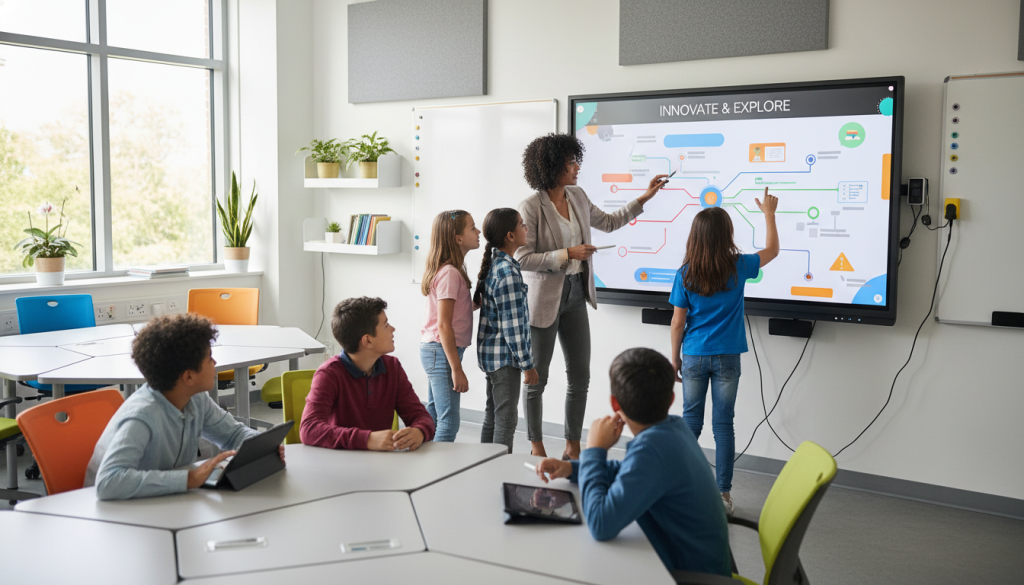
The interactive whiteboard (IWB) and its successor, the Interactive Flat Panel (IFP), have historically been utilized as digital substitutes for analog chalkboards—a “sage on the stage” tool for teacher-led instruction. However, the modern capacity of these devices to render 4K imagery, handle multi-touch gestures, and integrate with cloud-based immersive content demands a re-evaluation of their role. They are not merely presentation devices; they are communal cognitive spaces where the “where” of geography and the “why” of storytelling intersect.
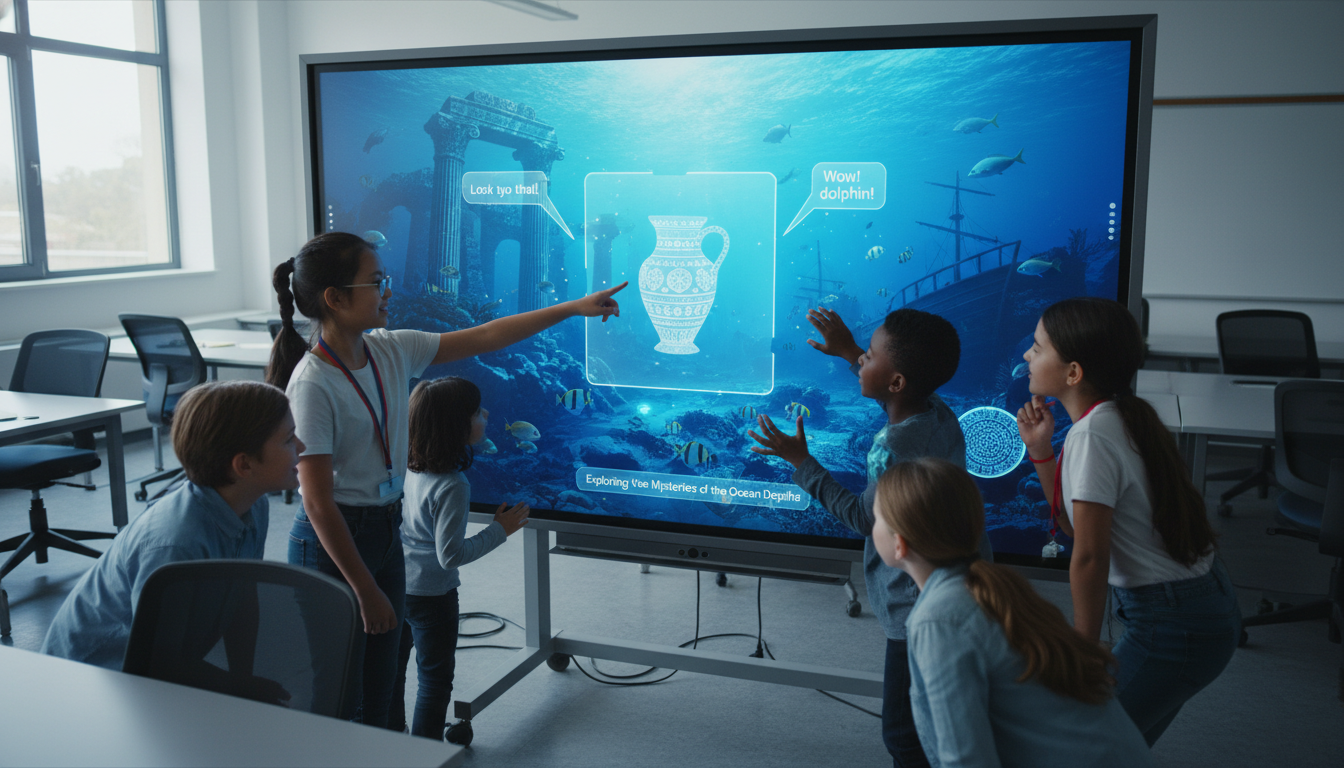
The integration of Virtual Field Trips (VFTs) enables students to traverse time and space without leaving the classroom, offering equitable access to cultural and scientific experiences that would otherwise be restricted by cost, distance, or safety. Yet, a VFT alone remains a receptive experience. Digital Storytelling transforms this reception into production. It compels the learner to synthesize their virtual experiences, organize them into coherent narratives, and broadcast them using multimodal tools. When these two strands intertwine on a large-format interactive display, the result is a powerful feedback loop: students explore a virtual world, gather digital artifacts (screenshots, data points), and immediately reassemble them on the same shared surface to tell a story. This report explores this convergence, detailing the hardware, software, and pedagogical strategies necessary to realize the full potential of the immersive classroom.
Theoretical Frameworks: Pedagogy in the Touch-Enabled Era
To understand why VFTs and digital storytelling on smart boards are effective, one must examine the underlying pedagogical theories. The large interface of a smart board fundamentally alters the cognitive and social dynamics of learning compared to 1:1 device usage.
Constructivism and Active Learning
Constructivist theory posits that learners build knowledge through active engagement with the world. In the context of VFTs, the smart board facilitates active learning by shifting the student role from passive viewer to active navigator. Research indicates that active learning involves students “doing things and thinking about the things they are doing”. On an interactive display, this “doing” is physical. A student physically reaching up to rotate a 3D molecule or trace the path of a river on a satellite map engages kinesthetic learning pathways that are dormant during passive video watching. The tactile element—touching the content—increases the permanence of learning by creating multi-sensory memory anchors.
Computer-Supported Collaborative Learning (CSCL)
Unlike Virtual Reality (VR) headsets, which isolate the user, the smart board is a “campfire” technology that supports Computer-Supported Collaborative Learning (CSCL). It creates a shared visual reference that anchors group discussion.
- Joint Attention: The size of the display ensures that all group members are looking at the exact same detail simultaneously, reducing ambiguity in communication.
- Collaborative Friction: The necessity to negotiate control of the screen—who drives the map, who writes the notes—fosters soft skills like negotiation and teamwork.
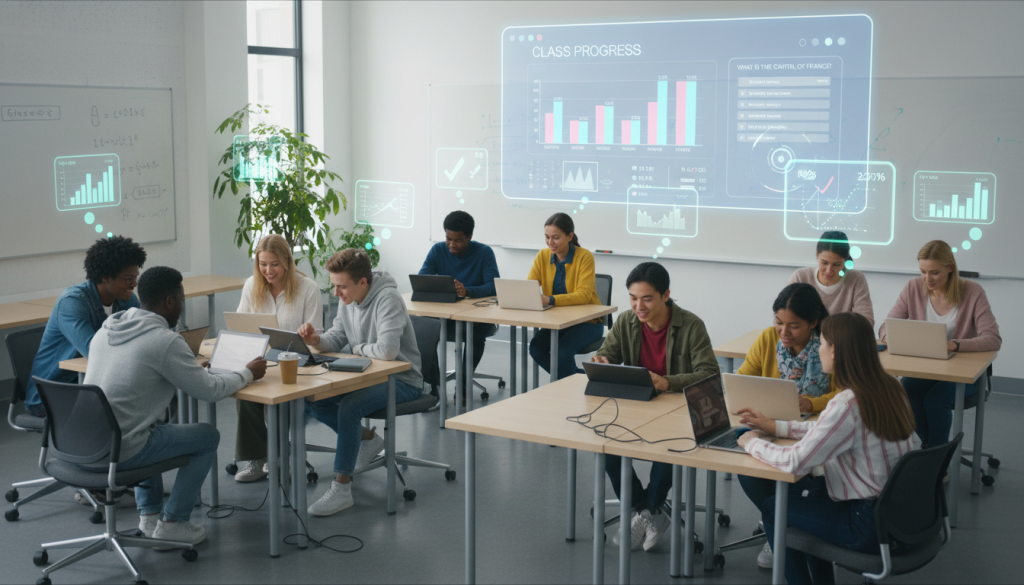
- Visible Thinking: The board acts as an external working memory for the group. By annotating a map or dragging images into a storyboard, students make their thinking visible to peers and teachers, allowing for immediate feedback and scaffolding.
Place-Based Education (PBE) in Virtual Spaces
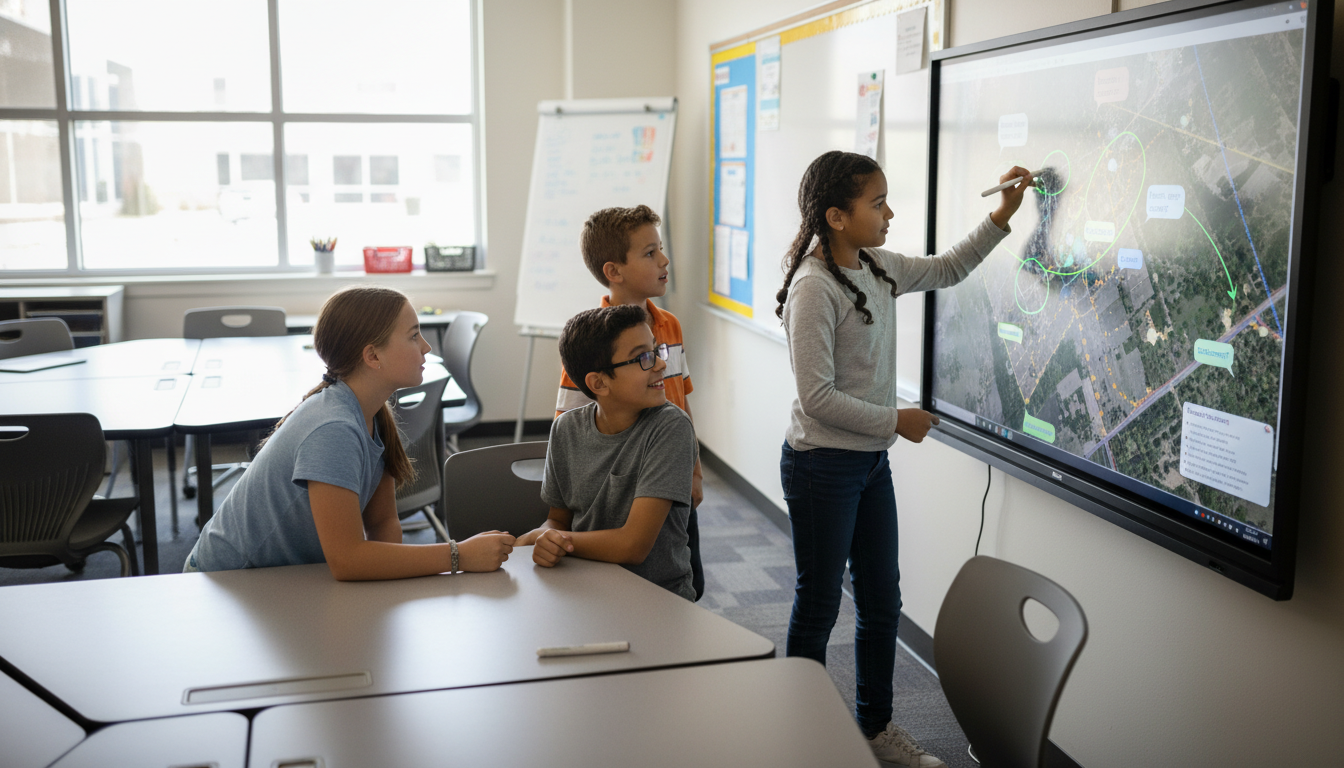
Place-Based Education emphasizes learning rooted in the local environment. VFTs extend this to “Virtual Place-Based Learning,” allowing students to develop a sense of place for locations they have never physically visited. By using tools like Google Earth to explore street-level details, students can engage in “virtual fieldwork,” observing architectural styles, vegetation, or urban planning decisions just as they would in the real world. The smart board serves as the window for this fieldwork, but a window that allows for annotation and measurement, turning the virtual environment into a laboratory.
The Hardware Landscape: Interactive Flat Panels (IFPs) Analyzed
The success of immersive storytelling relies heavily on the capabilities of the hardware. Not all touch screens are created equal; distinctions in touch technology, operating systems, and software ecosystems significantly impact the fluidity of the experience.
SMART Technologies: The Tactile Standard
SMART Technologies remains a dominant force, particularly with their 6000S and MX Series panels, which are engineered specifically for the nuances of educational collaboration.
Simultaneous Tool Differentiation A critical feature for multi-user storytelling is Simultaneous Tool Differentiation, exclusive to SMART’s Object Awareness technology. In a typical collaborative session, one student might be annotating a map while another moves a toolbar. On generic capacitive screens, the system often confuses these inputs. SMART boards distinguish between a pen (writing), a finger (touch/drag), and a palm (erase) automatically.
- Pedagogical Implication: This removes technical friction. Students do not need to select “eraser tool” from a menu; they simply use their hand. This fluidity is essential for maintaining the “flow” of a storytelling session where rapid ideation is required.
The Lumio Ecosystem SMART’s software, Lumio (formerly SMART Learning Suite Online), bridges the gap between the board and student devices. It allows for “Hellfire” integration where VFT content on the board can be broadcast to individual student devices for personal annotation, then cast back to the main display. This supports a “We do, I do, We Share” pedagogical loop.
Promethean World: The ActivPanel and Software Synergy
Promethean’s ActivPanel series focuses on a robust integration of hardware and lesson delivery software, notably ActivInspire and the newly acquired Explain Everything.
Vellum Writing Technology Promethean utilizes Vellum technology to optimize touch detection, offering a natural writing experience with minimal lag. This is crucial for digital storytelling activities that involve handwriting or detailed sketching over VFT images.
ActivInspire Screen Recorder For digital storytelling, the native Screen Recorder in ActivInspire is a powerhouse. It allows users to capture both the screen activity and audio narration simultaneously.
- Workflow: A student stands at the board navigating a 3D model of the solar system. As they spin the planets and zoom in, they narrate their “tour.” The software captures this performance as a video file, which becomes a digital storytelling artifact. The “Area Screen Recorder” feature allows for recording only a specific window, enabling students to record a VFT in one part of the screen while keeping their script visible in another.
ViewSonic and myViewBoard
ViewSonic has carved a niche with its ViewBoard hardware and the myViewBoard software suite, which emphasizes cloud integration and content curation.
Magic Box and Infinite Canvas The Magic Box tool in myViewBoard allows for dragging and dropping rich media directly onto the canvas. Teachers can pull live YouTube videos (e.g., 360-degree nature documentaries) or Google Images directly into the workspace without leaving the whiteboarding app. This supports spontaneous “app smashing” where a VFT becomes the background for a lesson.
- Originals: ViewSonic provides a library of “Originals”—pre-made interactive lessons and games, including virtual tours and geography content, which significantly lowers the barrier to entry for teachers.
Clevertouch and LYNX
Clevertouch displays, often powered by their LUX user interface, are designed to function like giant tablets. Their integrated LYNX Whiteboard software is platform-agnostic, running on the board’s Android core as well as Windows/Mac.
LYNX Cloud and Collaboration LYNX emphasizes cloud-based sharing.
A teacher can create a lesson on a laptop, save it to the cloud, and open it on any Clevertouch screen. The software includes AI handwriting recognition and shape drawing, which can assist younger students in creating legible storyboards during collaborative sessions.
- NFC Security: Clevertouch Edge/Impact series often include NFC readers, allowing teachers to tap a card to instantly load their personal profile and cloud drives (Google Drive/OneDrive), facilitating quick access to VFT assets.
3.5 Emerging Competitors: Newline, BenQ, and Vibe
- Newline Interactive: The Q Series and Z Series focuses on non-proprietary software compatibility, marketing themselves as “hardware for any software.” This flexibility is ideal for schools that rely heavily on the Google ecosystem, as the boards function as giant Android tablets or Windows touchscreens without forcing users into a walled garden.
- BenQ: BenQ boards, such as the Pro Series, highlight Germ-Resistant Screens (nano-ionic silver coating) and Eye-Care technologies (low blue light, flicker-free), which are significant factors for student health during prolonged usage sessions. They also feature EZWrite software for cloud whiteboarding.
- Vibe: Vibe boards are marketed as “all-in-one” collaboration hubs with an infinite canvas software (Vibe Canvas) that runs on ChromeOS. They excel in hybrid environments, with strong integration for Zoom/Teams and the ability for remote participants to draw on the board in real-time.
3.6 Comparative Feature Matrix: Touch and Collaboration
| Feature | SMART Board (6000S/MX) | Promethean ActivPanel | ViewSonic ViewBoard | Clevertouch Impact/Edge |
|---|---|---|---|---|
| Touch Tech | HyPr Touch w/ Object Awareness | Vellum Writing Technology | Ultra Fine Touch | High Precision IR |
| Differentiation | Simultaneous Tool Differentiation (Pen/Finger/Palm) | Standard Multi-Touch | Standard Multi-Touch | Standard Multi-Touch |
| Native Software | SMART Notebook, Lumio | ActivInspire, ClassFlow | myViewBoard | LYNX Whiteboard |
| Recording | via Notebook/Lumio | Native Area/Full Screen | via myViewBoard | Native Screen Recorder |
| Cloud Access | Lumio (Google Integ.) | Cloud Connect | Google Drive/OneDrive Integ. | LYNX Cloud / NFC Login |
4. The Virtual Field Trip (VFT): Platforms and Modalities
The hardware provides the canvas, but the VFT platforms provide the paint. The spectrum of VFTs ranges from static 360-degree image repositories to dynamic, data-driven simulations.
4.1 Google Earth: The Titan of Exploration
Google Earth is the premier platform for VFTs due to its unparalleled depth of geospatial data. On an interactive whiteboard, it transcends its desktop utility to become a fully immersive environment.
Google Earth Projects
The Projects feature in Google Earth for Web allows users to curate a sequence of locations, creating a narrative arc across the globe.
- Narrative Placemarks: Users can add rich text, images, and videos to the “knowledge cards” associated with each location. A project on “The Life of Nelson Mandela” might guide the class from Qunu to Johannesburg to Robben Island, with each stop displaying historical photos and student-written biographical summaries.
- HTML Embedding: A powerful, advanced feature is the ability to embed HTML code into the project cards. Educators can embed Google Forms directly into a placemark. When students navigate to a location on the smart board, a quiz or reflection prompt appears within the Earth interface, allowing for immediate formative assessment.
Navigation Gestures and Usability
Navigating Google Earth on a large touch screen requires specific techniques.
- Gesture Handling: The “pinch-to-zoom” and “two-finger pan” gestures must be executed deliberately. Some users report that standard web gestures can be “greedy” (intercepting scrolls intended for text), so configuring browser settings or using specific touch techniques (e.g., distinct spread for zoom) is necessary.
- Street View: Accessing Street View involves dragging “Pegman” to a location. On a smart board, this provides a floor-to-ceiling view of a location. Students can “walk” down a street in Tokyo by tapping arrows or dragging the horizon, identifying cultural markers in a highly immersive way.
4.2 Curated Educational VFTs
Several platforms offer “turnkey” VFT experiences designed specifically for the classroom.
- Discovery Education: Offers high-production-value VFTs (e.g., “Tundra Connections,” “Behind the Wings”) that function as interactive documentaries. These are less about free exploration and more about guided narrative, often accompanied by teacher toolkits and lesson plans.
- AirPano: Specializes in high-resolution 360-degree aerial panoramas. These images are visually stunning on 4K interactive displays and serve as excellent writing prompts. The lack of navigation complexity makes them ideal for younger students or quick “do now” activities.
- Smithsonian & Museum Tours: Institutions like the Smithsonian National Museum of Natural History offer room-by-room virtual tours. These often support a “Kiosk Mode” which hides browser bars, making them ideal for unattended student stations on the smart board.
4.3 Museum-Grade Virtual Tours and “Kiosk Mode”
For schools wishing to replicate a museum exhibit experience, setting up a smart board in Kiosk Mode is a powerful strategy.
- Implementation: Using tools like Guided Access (on iPads mirrored to screens) or browser-based kiosk extensions, a smart board can be locked to a specific VFT (e.g., the Louvre’s virtual tour). This transforms the board into an interactive exhibit where students can explore independently without the risk of navigating away to unrelated content.
- Kiosk Software: Specialized software like FlowVella or Intuiface can be used to build custom interactive museum exhibits for the classroom. These tools allow for “no-code” creation of touch interfaces that guide students through a curated set of videos and images, effectively allowing the teacher to build their own museum app.
5. Digital Storytelling: Tools for Construction and Expression
Digital storytelling on a smart board moves students from consumption to creation. It leverages the board’s multimodal capabilities—touch, voice recording, large-scale drawing—to construct narratives.
5.1 The Infinite Canvas: Explain Everything
Explain Everything (now part of Promethean) is arguably the most versatile tool for this purpose. Its defining feature is the Infinite Canvas, which breaks the linear slide-deck paradigm.
- Non-Linear Narratives: Students can arrange ideas spatially, grouping concepts into clusters rather than slides. This supports “mind map” style storytelling where the connections between events are as important as the events themselves.
- Puppeteering and Recording: The software allows for “drag-and-talk” recording. Students can press record, then move characters (images) around the screen while speaking. The app captures the movement and voice in real-time, creating an animation. On a smart board, this allows a group of students to perform a story physically, moving digital assets with their hands like puppets.
- Collaborative Mode: Explain Everything supports real-time cloud collaboration. Students on tablets can “throw” images or drawings onto the main smart board canvas, where a lead student arranges them. This “many-to-one” workflow leverages the board as a central synthesis hub.
5.2 Multimodal Publishing: Book Creator
Book Creator is a simple yet powerful tool for creating multimedia ebooks. While often used on 1:1 devices, its utility on a smart board is significant for modeling and collaborative publishing.
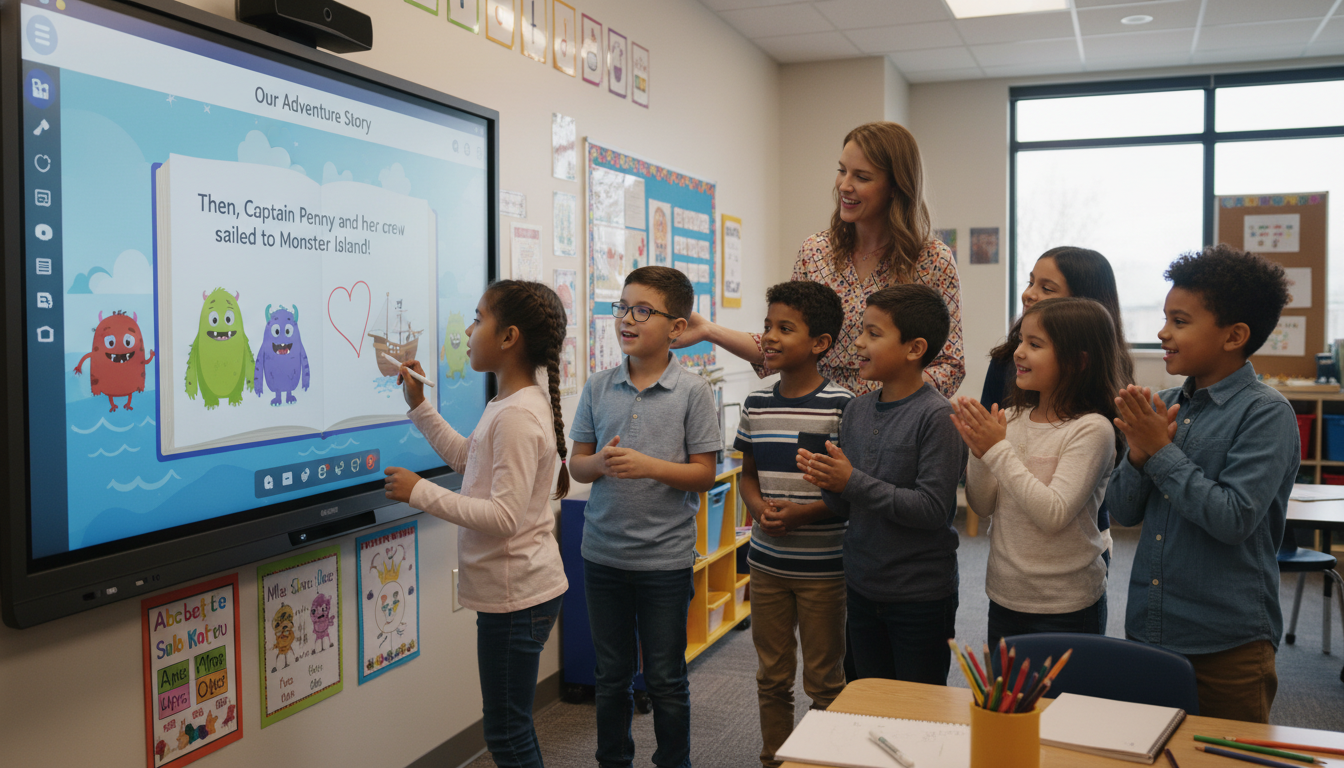
- Whole-Class Authorship: A teacher can project a blank book on the smart board. Students take turns coming to the board to design a page—drawing a picture, typing text, or recording a video reflection directly into the page. The result is a “Class Book” that represents the collective knowledge of the group.
- Accessibility Modeling: The smart board is the perfect venue for demonstrating accessibility. Teachers can show how to add audio dictation or “alt text” to images in Book Creator, ensuring that digital stories are inclusive. The large screen ensures every student can see the UI steps required to activate these features.
- Publishing: Finished books can be published to a private class library. The “Read to Me” mode allows the smart board to “read” the student books aloud to the class, turning the board into a storytelling station.
5.3 Mapping Narratives: StoryMapJS and Tour Builder Alternatives
For narratives deeply tied to geography, StoryMapJS (by Knight Lab) offers a structured alternative to Google Earth.
- Structure: Unlike the free-form 3D globe, StoryMapJS uses 2D maps and large “slide” panels. As the user advances the slide, the map automatically pans and zooms to the corresponding location.
- Smart Board Utility: This format reads like a professional interactive documentary. It is excellent for linear historical narratives (e.g., “The Path of the Silk Road”). Students can build these maps on laptops and then present them on the smart board, using the large touch targets to advance the story and highlight map details.
6. Synergies and Workflows: App Smashing on the Big Screen
The most potent educational experiences often come from “app smashing”—combining multiple tools to achieve a learning outcome that no single app could deliver. The smart board serves as the “workbench” for these combinations.
6.1 The “Capture-Annotate-Narrate” Workflow
This workflow bridges the gap between VFT exploration and storytelling.
- Explore: The class explores a location in Google Earth (e.g., the Colosseum) on the smart board.
- Capture: Using the board’s Screen Capture tool (SMART Ink or Promethean Screen Capture), a student captures a specific high-resolution view of the ruins.
- Annotate: The image is imported into the whiteboarding software (SMART Notebook or LYNX). Students use the digital pens to “reconstruct” the ruins, drawing the missing arches and seating over the photo. This requires the board’s high-precision touch to handle fine drawing.
- Narrate: The reconstructed image is then brought into Explain Everything. Students hit record and use the laser pointer tool to highlight different architectural features while explaining their function.
- Publish: The resulting video is embedded into a Book Creator ebook about “Roman Engineering.”
6.2 The “Green Screen” Hybrid
While not a digital green screen, the smart board can function as a virtual backdrop.
- Workflow: A high-resolution 360-degree panorama from AirPano is displayed on the board (e.g., the surface of Mars).
- Performance: A student stands in front of the board (acting as a reporter). A tablet records the student with the board filling the background.
- Storytelling: The student delivers a “live report” from Mars. Because the board is interactive, the student can turn around and pan the background image during the report to show different angles of the landscape, creating a dynamic, immersive news segment.
7. Instructional Design and Lesson Architectures
Effective implementation requires structured lesson plans that guide students through the immersive landscape.
7.1 Elementary Lesson: The Collaborative Detective
Target Audience: Grades 3-5
Concept: A “Where in the World is…” mystery game using Street View.
Pedagogy: Inquiry-Based Learning / Visual Literacy.
- Phase 1: Observation: The teacher displays a Street View of a mystery location (e.g., a market in Marrakesh) on the board. The address and UI are hidden (Kiosk Mode).
- Phase 2: Investigation: Students rotate to the board in groups. They use the Magnifier tool to inspect details: the script on signs, the type of clothing worn by people, the vegetation.
- Phase 3: Hypothesizing: Using the annotation layer, they circle clues (e.g., “Palm trees,” “Arabic script”). On a side panel (split screen), they construct a “Mind Map” linking clues to potential regions.
- Phase 4: Storytelling: Once the location is revealed, the class collaborates to write a “sensory poem” about the location using the board’s handwriting recognition, describing the hypothetical sounds and smells of the market.
7.2 Middle School Lesson: The Virtual Urban Planner
Target Audience: Grades 6-8
Concept: Designing climate-resilient cities.
Pedagogy: Problem-Based Learning (PBL) / Design Thinking.
- Phase 1: Data Analysis: The class views a Google Earth Timelapse of a coastal city (e.g., Miami) showing urban sprawl and rising water levels over 30 years.
- Phase 2: Measurement: Students use the Ruler and Area tools in Google Earth to measure the land area at risk of flooding.
- Phase 3: Design: The teacher takes a screenshot of a vulnerable neighborhood. This is imported into SMART Notebook.
- Phase 4: Creation: Students work in teams to draw “adaptation strategies” over the map—sea walls, green roofs, drainage canals. They use the Simultaneous Tool Differentiation feature to have multiple students drawing different infrastructure elements at the same time.
- Phase 5: Presentation: Teams present their adapted city plan to the class, using the board to zoom in on specific interventions and explain their reasoning.
7.3 High School Lesson: The Historical Empathy Project
Target Audience: Grades 9-12
Concept: Reconstructing historical narratives through virtual space.
Pedagogy: Historical Empathy / Narrative Construction.
- Phase 1: Research: Students research the “underground railroad” routes.
- Phase 2: Mapping: Using Google Earth Projects, students create a placemark for each safe house. They embed primary source documents (runaway slave ads, diary entries) into the placemarks.
- Phase 3: Simulation: The board is set to a “forest” location in Street View at night (using dark overlays).
- Phase 4: Narrative Performance: Students stand at the board. They navigate the route while reading a first-person narrative they have written from the perspective of an escaping person. The large, dark immersive screen sets the emotional tone.
- Phase 5: Reflection: The class uses a digital polling tool (embedded in the final placemark via HTML) to reflect on the challenges of the journey.
8. Technical Implementation and Classroom Management
The shift to an immersive classroom brings technical and logistical challenges that must be managed to ensure success.
8.1 Motion Sickness and Visual Ergonomics
Navigating 360-degree content on a 75+ inch screen can induce “cybersickness” due to the large Field of View (FOV) and optical flow.
- Mitigation: Teachers should avoid rapid, continuous panning. Instead, use “click-to-move” (teleportation) navigation. Keep rotational movements slow and deliberate. Ensure ambient lighting is sufficient to anchor the student’s peripheral vision to the physical room.
8.2 Managing the “Sage on the Stage” Trap
A risk of the smart board is that it reinforces teacher-centric instruction, where the teacher controls the VFT and students watch.
- Station Rotation: Use the smart board as one station in a rotation. A small group of 4-5 students works at the board independently (using a Kiosk Mode VFT) while the teacher works with others.
- Casting/Mirroring: Use screen casting tools (e.g., NewLine Cast, Promethean Screen Share) to allow students to “drive” the board from their seats using their Chromebooks or iPads. This decentralizes control.
8.3 Bandwidth and Hardware Specs
High-fidelity VFTs (especially 4K video) are bandwidth-intensive.
- Caching: Where possible, preload Google Earth locations or download 360-degree videos to the board’s local storage (OPS module).
- OPS Specs: For smooth 3D rendering in Google Earth, the Open Pluggable Specification (OPS) PC slotted into the board should ideally have 8GB+ RAM and a dedicated GPU (or high-end integrated graphics). Android-only modules may struggle with complex browser-based 3D rendering.
8.4 Multi-User Touch Management
While boards support 20+ touch points, software often struggles to interpret 20 discrete actions meaningfully.
- Zoning: In collaborative activities, divide the screen into “zones” using the whiteboard software (e.g., draw vertical lines). Assign each student a zone to prevent accidental interference with each other’s work.
9. Conclusion
The integration of Virtual Field Trips and Digital Storytelling on interactive displays represents a mature convergence of educational technology. It leverages the unique affordances of the IFP—scale, touch, and collaborative visibility—to create a learning environment that is simultaneously expansive and intimate. By moving beyond the passive consumption of virtual tours and embracing the active construction of digital narratives, educators empower students to become not just observers of the world, but cartographers and storytellers of their own learning journeys.
The technology, from SMART’s object awareness to Google Earth’s creation tools, is now sufficiently advanced to support this vision with minimal friction. The challenge lies no longer in the hardware, but in the pedagogical imagination. As this report demonstrates, when the walls of the classroom become permeable screens, the curriculum itself expands to encompass the globe, offering a “learning landscape” limited only by the reach of the student’s hand.