


Laptop Battery Guide: Maximize Life & Health (Modern Tips)
Executive Summary: The Modern Laptop Battery Code

The strategies for prolonging laptop battery life are widely misunderstood, often rooted in obsolete practices from extinct battery chemistries. The modern lithium-ion battery in a laptop is a complex power system that requires a modern strategy. Forget the myths of “memory,” “overcharging,” and “monthly discharges.” Optimal battery health is governed by three simple principles: manage heat, avoid high-voltage stress (a 100% charge), and prevent deep discharge (a 0% charge).
This report provides a definitive guide to laptop battery care by first establishing the scientific principles of battery degradation and then translating them into two simple, scenario-based strategies. All best practices are ultimately a balancing act between two forms of degradation: Calendar Aging (the battery’s inevitable decay over time) and Cyclic Aging (the wear and tear from using the battery).
The single most effective tool for managing this is not a charging habit, but the battery management software provided by the laptop manufacturer. This report details precisely how to use the specific software for Dell, HP, Lenovo, ASUS, and Apple laptops.
All recommendations are segmented into two distinct user profiles:
- The “Desktop Replacement“: A user whose laptop is plugged in more than 90% of the time (e.g., a docked workstation or gaming laptop). This user’s primary enemy is Calendar Aging, accelerated by heat and a constant 100% charge. The goal is to create a low-stress “storage” state while plugged in.
- The “Road Warrior“: A user who is frequently mobile and relies heavily on battery power (e.g., a student or traveler). This user’s primary enemy is Cyclic Aging. The goal is to maximize the number of useful cycles from the battery by avoiding stressful deep discharges.
By identifying the correct profile and implementing the specific software controls detailed in Section VI, a user can significantly extend the lifespan and performance of their laptop’s battery, often adding years to its useful life.
I. Understanding Your Battery: A Primer for Power Users
Before implementing best practices, it is essential to understand the technology inside the device. Modern laptops are powered by lithium-based batteries, and their longevity is dictated by their chemistry and how they are used.
I.A. Li-ion vs. Li-Po: A Distinction Without a Difference
In the consumer electronics market, two terms dominate: Lithium-ion (Li-ion) and Lithium-polymer (Li-Po). This distinction, however, is a primary source of confusion and is largely irrelevant for the end-user.
- Traditional Definitions: Technically, a “lithium-ion” battery uses a liquid electrolyte to facilitate the movement of ions, while a “lithium-polymer” battery uses a solid polymer or gel-like electrolyte. This polymer allows Li-Po batteries to be housed in flexible, lightweight pouches, making them ideal for thin laptops, smartphones, and wearables. In contrast, traditional Li-ion batteries are often housed in rigid, cylindrical metal cells (like the 18650 cell).
- Contradictory Data: The practical difference between them is muddied by contradictory marketing and technical data. Some sources claim Li-Po offers a significantly longer cycle life (1500-2000 cycles) compared to Li-ion (500-1000 cycles). Conversely, other sources state that Li-Po batteries offer 500-1000 cycles, identical to standard Li-ion. Further confusion exists around energy density, with some sources claiming Li-ion is more energy-dense while others claim Li-Po is.
- The Practical Reality: This confusion exists because “Li-Po” in a modern laptop context does not typically refer to a true solid-state battery. It refers to a lithium-ion battery that simply uses a polymer pouch as its casing instead of a metal can. The underlying chemistry—the cathode and anode materials where the lithium ions are stored (e.g., Lithium Cobalt Oxide, NMC, or LFP)—is what dictates performance.
For the purpose of this report, the terms “lithium-ion” and “lithium-polymer” are interchangeable. The chemical principles of degradation are identical. All rules and recommendations that follow apply equally to both.
I.B. Defining Degradation: Calendar vs. Cycle Aging
A laptop battery’s “death” is not a sudden event. It is a slow process of degradation that begins the moment it is manufactured. This degradation manifests in two primary ways: a reduction in capacity (the battery holds less charge) and an increase in internal resistance (the battery can’t deliver power as efficiently, leading to sluggishness and more heat).
This degradation is caused by two distinct, parallel processes:
- Calendar Aging: This is the battery’s unavoidable, time-based decay. It occurs 24/7, regardless of whether the battery is being used or sitting on a shelf. This aging is primarily accelerated by two factors: high ambient temperatures and a high state of charge.
- Cyclic Aging: This is the wear and tear caused by the physical act of charging and discharging the battery. Every time lithium ions are forced to move between the anode and cathode, it causes microscopic stresses and side reactions that slowly reduce the battery’s performance.
This distinction is the most critical concept for a laptop user to understand. A “Desktop Replacement” user, whose laptop is always plugged in, is not primarily degrading their battery through cyclic aging (their cycle count may be very low). They are degrading it through calendar aging. This user is, often unknowingly, creating a “perfect storm” for rapid calendar aging: the battery is subjected to 1) constant, high internal heat from the laptop’s CPU and GPU and 2) a constant, high-stress 100% state of charge. This combination will destroy a battery’s capacity even if it has fewer than 100 cycles.
I.C. What is a “Charge Cycle”? (And Why Not All Are Equal)
A “charge cycle” is the primary metric for cyclic aging, but it is often misunderstood.
- A Cumulative Measure: One charge cycle is defined as the cumulative act of discharging 100% of the battery’s capacity. This does not mean plugging the laptop in once. For example, discharging from 100% to 50% and recharging (a 50% discharge) is half a cycle. Discharging from 80% to 70% (a 10% discharge) ten times is equivalent to one full cycle. A typical laptop battery is rated for 300-500 or 400-1200 of these full cycles before its capacity drops to 80% of its original design.
- Depth of Discharge (DoD): Not all cycles are created equal. The depth of the discharge—how much of the battery is used in a single go—has a dramatic, non-linear effect on the battery’s total lifespan. A shallow cycle (e.g., 80% -> 60%) causes significantly less wear than one deep cycle (e.g., 100% -> 0%).
Data on this relationship (detailed in Section IV) shows that a battery that is consistently cycled at 100% DoD (full discharge) may only last 300-600 total cycles. The same battery, if only cycled at 20% DoD (e.g., from 70% to 50%), could last 2,000 to 9,000 cycles.
This phenomenon is the scientific foundation for the “20-80%” rule. The goal for a mobile user (“Road Warrior“) is not to avoid using cycles, but to ensure the cycles that are used are as shallow and low-stress as possible.
II. The Three Enemies: What Truly Kills a Laptop Battery
All battery degradation, whether calendar or cyclic, is accelerated by a few key environmental and electrical stressors. The best practices for battery health are, in effect, a strategy to mitigate these three “enemies.”
II.A. 1. Heat: The Silent Killer
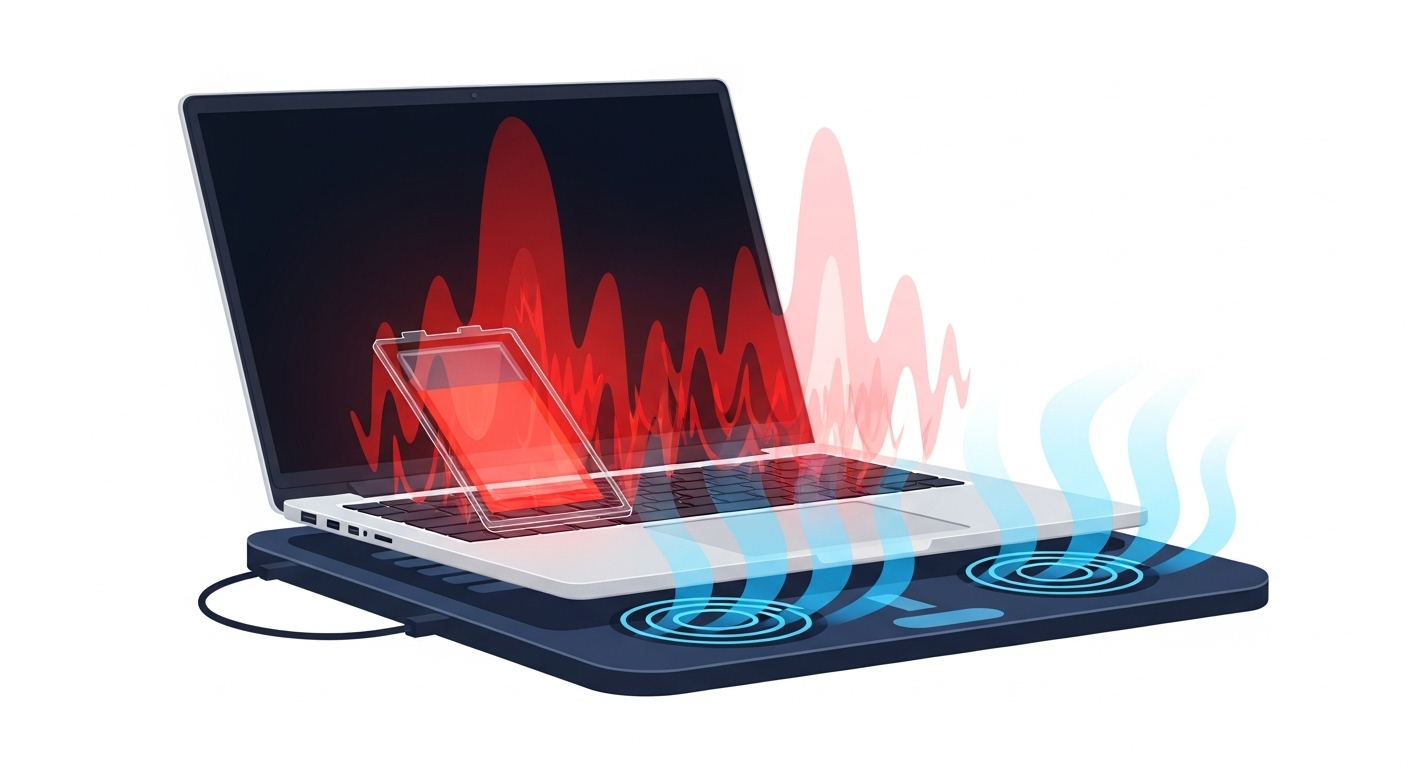
Heat is, without question, the primary enemy of all lithium-ion batteries. While laptop CPUs and GPUs are designed to operate at high temperatures, the battery is not.
The Science of Damage: High temperatures accelerate the parasitic chemical reactions inside the battery. This degrades the electrolyte and causes permanent, irreversible capacity loss.
The Temperature Ranges:
- Ideal Range: The optimal operating temperature for a Li-ion battery is between 68°F and 77°F (20°C and 25°C).
- Optimal Performance Range: Batteries perform well between 32°F and 95°F (0°C and 35°C).
- The Danger Zone: Any temperature above 95°F (35°C) “dramatically” accelerates the rate of chemical aging. Storing a laptop in a hot car or using it in direct sunlight can permanently reduce its battery life.
Internal vs. Ambient Heat: A laptop user faces a dual threat: ambient heat (the environment) and internal heat. When running intensive tasks like gaming or video rendering, the laptop’s CPU and GPU generate a large amount of heat. This heat “soaks” into the chassis and raises the battery’s internal temperature, “cooking” it from the inside. This is why a gamer’s laptop battery can fail in 1-2 years, even if it’s rarely used on battery.
The Dangers of Cold: Cold temperatures are less damaging, but still problematic.
- Performance: Below 32°F (0°C), the battery’s internal resistance increases, reducing its capacity and ability to deliver power. This effect is largely temporary; performance returns to normal when the battery warms up.
- The Real Dangers (Charging): The true danger of cold is charging the battery in freezing temperatures. Charging below 32°F (0°C) can cause a phenomenon called “lithium plating” or “metal plating” on the anode. This is an irreversible, permanent form of damage that reduces capacity and can compromise battery safety. Most modern laptops have protection circuits to prevent this, but it should never be attempted.
For any high-performance user, thermal management is a primary component of battery care. Using a laptop stand or cooling pad to ensure clear airflow is not an accessory; it is a necessity for battery longevity.
II.B. 2. High Voltage Stress: The Peril of 100%
The second great enemy of a lithium-ion battery is a high state of charge (SoC).
This is the most misunderstood aspect of battery care, as it is often confused with the myth of “overcharging.”
- The Science of Damage: A 100% charge corresponds to the battery cell’s maximum design voltage (e.g., 4.20V per cell or higher). Holding the battery in this high-voltage state places its internal components, particularly the cathode, under significant chemical stress. This high-voltage state accelerates degradation and parasitic reactions.
- This is Not “Overcharging”: A modern laptop cannot be “overcharged”. Every device contains a sophisticated battery management system (BMS) that stops the flow of electricity the moment the battery reaches 100%. The damage is not from charging to 100%; it is from sitting at 100%. This is a key driver of calendar aging—a battery sitting on a shelf at 100% will degrade ~5 times faster than one sitting at 80%.
- The “80% Limit” as a Voltage Limit: The “80% limit” is a user-friendly proxy for a voltage limit, which is the true engineering goal. The relationship between charge voltage and cycle life is exponential:
- Charging to 4.20V/cell (100% capacity) yields 300-500 cycles.
- Charging to 4.13V/cell (~90% capacity) yields 400-700 cycles.
- Charging to 4.06V/cell (~81% capacity) yields 600-1,000 cycles.
- Charging to 3.92V/cell (~65% capacity) yields 1,200-2,000 cycles.
This data is the definitive proof. Lowering the maximum charge voltage from 100% to ~80% can effectively double the battery’s total lifespan by dramatically reducing this high-voltage stress. This is the entire principle behind the manufacturer-provided battery management software in Section VI.
Deep Discharge: The 0% Danger Zone
The third enemy is the opposite extreme: a low state of charge, or deep discharge. Allowing the battery to drain to 0% is one of the most damaging things a user can do.
- The Science of Damage: This “deep cycle” puts significant stress on the battery’s components. However, the true danger is not the act of hitting 0%, but the state of sitting at 0%.
- The “Deep Discharge” State: All batteries naturally self-discharge over time. A battery left at a critically low state (e.g., 1%) can self-discharge to a voltage below the battery’s safe-operating minimum. This is called a “deep discharge state”.
- Catastrophic Failure: When this happens, two things can occur: 1) The battery’s internal protection circuit may be triggered, permanently disabling the battery to prevent a dangerous recharge, or 2) Irreversible chemical changes occur that render the battery incapable of ever holding a charge again. In this state, the battery is “bricked.”
- The “20% Floor” as a Safety Buffer: This is why nearly all experts recommend keeping the battery above 20%. The 20% mark is not a “magic” stress-free zone. Rather, it is a critical safety buffer. It provides enough reserve capacity to prevent the laptop from accidentally self-discharging into a catastrophic, non-recoverable deep discharge state.
Debunking the Myths of Battery Care
Understanding the three enemies (Heat, 100%, 0%) allows for the definitive debunking of obsolete and harmful battery myths. Much of this “common knowledge” is a holdover from older Nickel-Cadmium (NiCd) technology and is actively detrimental to modern lithium-ion batteries.
The “Memory Effect” Fallacy
- The Myth: If a battery is repeatedly recharged from 50% to 100%, it will “forget” its full capacity and only “remember” the 50%-100% range. This requires a “full discharge” to 0% to “reset” the battery.
- The Fact: This “memory effect” was a real phenomenon in NiCd and some NiMH batteries. It does not exist in modern lithium-ion or lithium-polymer batteries.
- The Harm: The advice derived from this myth—to intentionally discharge a laptop to 0%—is actively harmful. As established in Section II.C, this is a high-stress event that courts catastrophic deep-discharge failure. The opposite is true: shallow discharges (e.g., 80% -> 60%) are far healthier for the battery.
(A technical note: Some advanced research has identified a “tiny memory effect” in certain Li-ion chemistries like LiFePO4. This effect is not the capacity-loss myth consumers fear; it is a minor voltage anomaly that can complicate state-of-charge estimation in large battery packs, such as in electric vehicles, but has no practical relevance to laptop battery health or user behavior.)
The “Overcharging” Myth
- The Myth: Leaving a laptop plugged in at 100% will “overcharge” the battery, forcing too much power into it and causing it to bulge or “explode.”
- The Fact: This is impossible on any modern, properly functioning laptop. All laptops have a charge controller that stops charging when the battery reaches 100%. The laptop then runs directly off the AC power adapter, bypassing the battery.
- The Harm (A Correct Observation, Incorrect Diagnosis): This myth is dangerous because it obscures the real problem. People correctly observe that leaving a laptop plugged in 24/7 does kill the battery. They assume the cause is “overcharging.” The actual causes are the two-pronged attack of high-voltage stress (from sitting at 100%) and internal heat (from the CPU/GPU cooking the battery). The user’s laptop is smart enough to stop charging, but it is not smart enough to prevent the high-voltage state from degrading itself—unless the user intervenes with the software in Section VI.
The “First Charge” Ritual & “Monthly Discharge”
- The Myth: A new laptop must be charged to 100% before its first use. Relatedly, a laptop battery should be “calibrated” once a month by discharging it fully to 0% and recharging to 100%.
- The Fact: The “first charge” rule is an “unfortunate carry-over” from old technologies and is completely unnecessary. The “monthly calibration” myth is a misunderstanding of a diagnostic procedure.
- The Harm: A full 0%-to-100% cycle is the most stressful type of cycle a battery can endure. Calibration does not improve battery health or capacity. Its only purpose is to fix a faulty percentage display. If a laptop’s battery sensor becomes desynchronized and the laptop dies when it still reads 15%, a full cycle may recalibrate this sensor. This is a high-stress diagnostic tool, not a health maintenance routine, and should be avoided.
The “Removing the Battery” Debate
- The Myth: On older laptops where the battery was removable, the “pro” tip was to remove the battery entirely when using the laptop as a desktop, running it purely on AC power.
- The Fact: This was, in fact, an excellent strategy for the time. The intent of this practice was to solve the two exact problems of “Desktop Replacement” degradation: 1) it prevented the battery from being “cooked” by the laptop’s internal heat, and 2) it prevented the battery from sitting at 100% (high-voltage stress) and saved cycles.
- The Modern Solution: On modern thin-and-light laptops, the battery is no longer user-removable. However, this functionality has been replaced by a superior, software-based solution. Manufacturer “Battery Charge Threshold” software (see Section VI) is the modern, digital equivalent of physically removing the battery.
- When a user sets a charge limit (e.g., to 60% or 80%), the laptop charges to that level and then stops.
- The charge controller then bypasses the battery entirely, and the laptop runs directly from the AC adapter.
- This achieves the exact same goals as removing the battery: it isolates the battery from the charge circuit (preventing 100% voltage stress) and allows it to rest in a cool, low-stress state, all without requiring the user to physically disassemble their machine.
The “Golden Rule”: Validating the 20-80% Zone
The single most common piece of modern battery advice is the “20-80% rule”: keep the battery level between 20% and 80% for optimal longevity. Some guides suggest an even tighter “40-80%” rule, noting that the most chemically stable, low-stress point for a Li-ion cell is around 40% SoC.
This advice is not arbitrary. It is based on definitive data linking the Depth of Discharge (DoD) to the total number of cycles a battery can endure before it degrades. The following table, synthesized from technical battery data, illustrates this critical, non-linear relationship.
| Depth of Discharge (DoD) | Example SoC Range | Estimated Total Cycles (NMC Chemistry) |
|---|---|---|
| 100% DoD | 100% → 0% | ~300 – 600 cycles |
| 80% DoD | 90% → 10% | ~400 – 900 cycles |
| 60% DoD | 80% → 20% | ~600 – 1,500 cycles |
| 40% DoD | 80% → 40% | ~1,000 – 3,000 cycles |
| 20% DoD | 70% → 50% | ~2,000 – 9,000 cycles |
Analysis: The 20-80% “Sweet Spot”
- By simply avoiding the extremes and operating in the 20%-80% range (a 60% DoD), a user can expect to get 2 to 3 times the total cycle life compared to a user who regularly discharges their laptop fully.
- The data also shows why the 40-80% rule is even better for longevity, potentially doubling the lifespan again.
- This demonstrates that the “20-80%” rule is a practical compromise between maximum longevity and daily usability. While the data shows that a 20% DoD (e.g., 70% to 50%) provides the absolute longest lifespan, this is highly impractical for a mobile user, as it provides only 20% of the battery’s capacity.
- The 20-80% range (a 60% DoD) is the “sweet spot.” It offers a massive, 200-300% longevity boost over a full discharge while still providing 60% of the battery’s capacity, which is practical for daily use. The 40-80% rule (a 40% DoD) is the ideal target for users who are mobile but are frequently near a charger.
The Definitive Usage Guide: Strategies for Every Scenario
With the science established, all best practices can be synthesized into two clear, actionable strategies based on user profile.
V.A. Scenario 1: The “Desktop Replacement”
- User Profile: The laptop is plugged in more than 90% of the time. This includes docked workstations, developers, and high-performance gamers.
- Primary Enemies: Calendar Aging, driven by 1) High Voltage Stress (sitting at 100%) and 2) Internal Heat (from CPU/GPU).
- The Goal: Mitigate calendar aging. Cycle count is irrelevant. The goal is to place the battery in a safe, low-stress “storage” state while the laptop remains plugged in.
- The Solution: A Manual Charge Limit. This user must use their manufacturer’s battery management software (see Section VI) to set a hard “Stop Charging” limit.
Recommendation: Set the “Stop Charging” threshold to 60%
While 80% is good, 60% is optimal for this user. The data from Section II.B shows that charging to only ~65% (a cell voltage of 3.92V) doubles the cycle life again compared to 80% and “eliminates all voltage related stresses.” Since this user is always plugged in, the 60% capacity is irrelevant. The laptop will charge to 60%, the circuit will bypass the battery, and the machine will run on AC power. This places the battery in its most stable, low-stress state, perfectly protected from high-voltage stress.
Heat Mitigation (Mandatory): This user is typically running high-performance tasks. They must also prioritize cooling. Using a cooling pad or laptop stand to maximize airflow is non-negotiable. Combining a 60% charge limit with good thermal management will maximize battery lifespan.
V.B. Scenario 2: The “Road Warrior”
- User Profile: The user is frequently mobile and relies on battery power. This includes students, commuters, and travelers.
- Primary Enemies: Cyclic Aging (high cycle count) and Deep Discharge (hitting 0%).
- The Goal: Maximize the number of usable cycles and avoid catastrophic failure.
- The Solution: Opportunistic charging, shallow discharges, and “smart” software.
Recommendations:
- Follow the “20-80% Rule”: This is the core strategy. Try to begin charging before the battery drops below 20% and unplug around 80% when practical.
- Practice “Opportunistic Charging”: Do not “wait” for the battery to get low. Charge it whenever a power source is available, even for short periods. A shallow charge from 60% to 80% is (as per Table 1) far “cheaper” in terms of wear than a deep charge from 20% to 80%.
- Use 100% Intelligently: Charge to 100% only when the extra range is needed (e.g., before a long flight or a day of classes). As soon as the need is over, unplug it and let it discharge back below 80%. The damage comes from sitting at 100%, not from visiting it.
- Trust “Smart Charging” (The OS-Level Tools): This user is the ideal candidate for the native, automatic features in their operating system, such as macOS Optimized Battery Charging and Windows Smart Charging. These tools learn the user’s routine and automatically manage the 80% limit, charging to 100% only when they predict the user will need it.
VI. The Implementation Guide: How to Take Control of Your Battery
The strategies above are only effective if the user knows how to implement them. The following is a detailed guide to the software-based controls for every major laptop brand.
There are two distinct types of software:
- OS-Level (Adaptive/Smart): These are native to macOS and Windows. They are automatic and adaptive. They learn a user’s routine and try to guess when to charge to 100%. These are best for the “Road Warrior.”
- Manufacturer-Level (Manual/Absolute): These are tools from Dell, Lenovo, HP, etc. They are manual and absolute. The user sets a hard limit (e.g., “Stop at 60%”), and the laptop obeys. These are essential for the “Desktop Replacement.”
Table 2: Battery Management Software Quick-Reference Guide
| Manufacturer | Software Name | Key Feature / Setting Name | Type |
|---|---|---|---|
| Apple (macOS) | System Settings (Native) | “Optimized Battery Charging” | Smart |
| Apple (macOS) | AlDente / BatFi (3rd Party) | Manual Charge Limiter | Manual |
| Microsoft (Windows) | Windows Settings (Native) | “Smart charging” (OEM-dependent) | Smart |
| Lenovo | Lenovo Vantage | “Battery Charge Threshold” | Manual |
| Dell | MyDell / Dell Power Manager | “Custom” (set start/stop) | Manual |
| HP | BIOS (F10 at boot) | “Battery Health Manager” → “Maximize my battery health” | Manual |
| ASUS | MyASUS | “Battery Health Charging” | Manual |
VI.A. Apple macOS
- Native: “Optimized Battery Charging”
This feature, on by default in modern macOS versions, is a “smart” system designed for mobile users.
- How it Works: macOS learns the user’s daily charging routine. If it predicts the laptop will be plugged in for an extended period (e.g., overnight), it will delay charging past 80%. It then aims to finish charging to 100% just before the user’s typical unplug time. If the user needs a full charge sooner, they can click the battery icon and select “Charge to Full Now”.
- Limitations: This feature is not a manual charge limiter. Its goal is still to provide a 100% charge. It is notoriously unreliable for users with irregular schedules, and many report that it “never works” or rarely engages. It is not the correct tool for a “Desktop Replacement” user.
- Third-Party: “AlDente” or “BatFi”
For Mac users in the “Desktop Replacement” scenario, a third-party utility is required to set a manual charge limit.
- How it Works: Applications like AlDente and BatFi are widely used and well-regarded in the Mac power-user community. They interface directly with the Mac’s charging controller to enforce a user-defined limit (e.g., 60% or 80%). This provides the “set it and forget it” functionality that “Desktop Replacement” users need, which Apple’s native tool does not offer.
VI.B. Windows & OEM Partners
- Native: Windows “Smart Charging”
Similar to Apple’s feature, Windows 11 includes a “Smart charging” framework.
- How it Works: This feature is implemented by the manufacturer, not Microsoft, so its behavior varies. When active, it sets the battery level to a lower target to reduce deterioration from being at 100%. The user will see a small “heart” icon on the battery in the taskbar, and a tooltip will read “Fully Smart charged”. Like Apple’s tool, it is adaptive and aims to provide 100% when needed. It can be turned off if a full charge is required, but the method to do so is specific to each manufacturer’s website.
For true “Desktop Replacement” control, the user must use the manufacturer’s own software.
- Lenovo (The Gold Standard)
Lenovo provides the most transparent and user-friendly controls via the Lenovo Vantage application.
- How to Set:
- Open the Lenovo Vantage application.
- Navigate to Device Settings → Power.
- Find the “Battery Charge Threshold” setting and enable the toggle.
- Set the “Stop charging at” limit to 80% (for mixed use) or 60% (for “Desktop Replacement” use).
- (Optional) Set “Start charging at” to 5% or 10% below the stop threshold (e.g., Stop at 60%, Start at 55%). This prevents tiny, needless “top-up” cycles.
- How to Set:
- Dell (The Power User’s Choice)
Dell integrates its controls into the MyDell or Dell Power Manager application (newer laptops use MyDell, which has absorbed Power Manager).
- How to Set:
- Open the MyDell (or Dell Power Manager) application.
- Navigate to the “Power” or “Battery Information” section.
- Look for “Battery Settings” or “Advanced Charge”.
- Dell offers several profiles. The “Custom” profile is the most powerful.
- In “Custom,” set a “Start charging” threshold and a “Stop charging” threshold, just like in Lenovo Vantage. For “Desktop Replacement” users, set “Stop charging” to 60% or 80%.
- How to Set:
- HP (The Hidden Option)
HP’s control is powerful but, on most models, it is not in a Windows application. It is hidden in the laptop’s BIOS.
- How to Set:
- Shut down the HP laptop.
- Power it on and immediately press the F10 key repeatedly to enter the BIOS Setup Utility.
- Using the arrow keys, navigate to the “Advanced” tab or “Configuration” tab.
- Find “Power Management Options”.
- Select “Battery Health Manager”.
- Change the setting from “Let HP Manage My Battery Health” to “Maximize my battery health”.
- This setting will automatically limit the maximum battery charge level to 80%.
- Press F10 to “Save and Exit.”
- How to Set:
- ASUS
ASUS provides a straightforward utility within its MyASUS application.
- How to Set:
- Open the MyASUS application.
- Navigate to “Battery Health Charging”.
- Select one of three modes:
- “Full Capacity Mode” (100%).
- “Balanced Mode” (limits charging to 80%).
- “Maximum Lifespan Mode” (limits charging to 60%).
- Select “Maximum Lifespan Mode” for “Desktop Replacement” use, or “Balanced Mode” for mixed use.
- How to Set:
VII. Special Cases: Storage, First Use, and Calibration
VII.A. Long-Term Storage (Weeks or Months)
If a laptop will not be used for an extended period (several weeks or months), its battery must be prepped for storage to prevent degradation.
- The “50% Rule”: Do not store the laptop fully charged or fully empty. A 100% charge will cause rapid calendar aging (capacity loss), while a 0% charge risks a catastrophic deep discharge.
- The Procedure:
- Charge (or discharge) the battery to approximately 50%. (Some sources suggest 40%, which is also safe). This is the most chemically stable, low-stress state.
- Power down the device completely (do not put it to sleep).
- Store the laptop in a cool, dry, moisture-free environment.
- Crucially, ensure the temperature is less than 90°F (32°C).
A hot closet or attic will destroy the battery.
- Maintenance: If the laptop is stored for longer than six months, power it on, charge it back up to 50%, and then shut it down again.
VII.B. First Use of a New Laptop
As established in Section III.C, the old rituals are obsolete.
- The Procedure: There are no special steps. A new laptop can be used immediately, on battery or plugged in. It is not necessary to “charge it to 100% before first use”.
- Recommendation: The first thing a new owner should do is decide which user profile they fit (“Desktop Replacement” or “Road Warrior”). They should then immediately open their manufacturer’s software (Section VI) and apply the correct battery charge settings for their use case.
VII.C. Battery Calibration (And Why Not to Do It)
- The Procedure: “Calibration” refers to a full 100% → 0% → 100% cycle.
- The Purpose (Not Health): This procedure does nothing to improve or “reset” the battery’s physical health or capacity. Its only function is as a diagnostic tool to resynchronize the battery’s reporting sensors.
- Recommendation: Do not do this. This is a high-stress, deep-discharge cycle that should be avoided. The only time to ever consider it is if the laptop’s percentage gauge is clearly broken (e.g., the device dies when it still reports 15% charge). Otherwise, it causes needless harm for no benefit.
VIII. Final Report: A Consolidated Best-Practice Checklist
DO:
- DO keep the laptop cool. Heat (internal and ambient) is the #1 enemy.
- DO use a laptop stand or cooling pad for intensive tasks like gaming.
- DO find and use the manufacturer’s battery management software (Lenovo Vantage, MyDell, HP BIOS, etc.).
- DO set a 60% or 80% charge limit if the laptop is plugged in most of the time (Desktop Replacement).
- DO try to keep the battery between 20% and 80% if you are a mobile user (Road Warrior).
- DO charge opportunistically. Shallow charges (e.g., 60% → 80%) are healthier than deep ones.
- DO charge to 100% only when the full range is needed, and unplug from 100% as soon as practical.
- DO store the laptop at ~50% charge in a cool, dry place if it will be unused for several weeks.
DON’T:
- DON’T let the laptop “cook” on a soft surface (like a pillow or bed) or in a hot car.
- DON’T let the battery sit at 100% for days or weeks at a time.
- DON’T ever intentionally discharge the battery to 0%.
- DON’T worry about the “memory effect.” It is a myth for modern batteries.
- DON’T worry about “overcharging.” The laptop’s circuitry prevents this.
- DON’T charge the laptop in freezing temperatures (below 32°F / 0°C).
- DON’T perform a “monthly calibration” (0% cycle). It is harmful and unnecessary.
